Setting up Telegram on Linux Mint to communicate with OpenClaw - instead of only using the OpenClaw console.
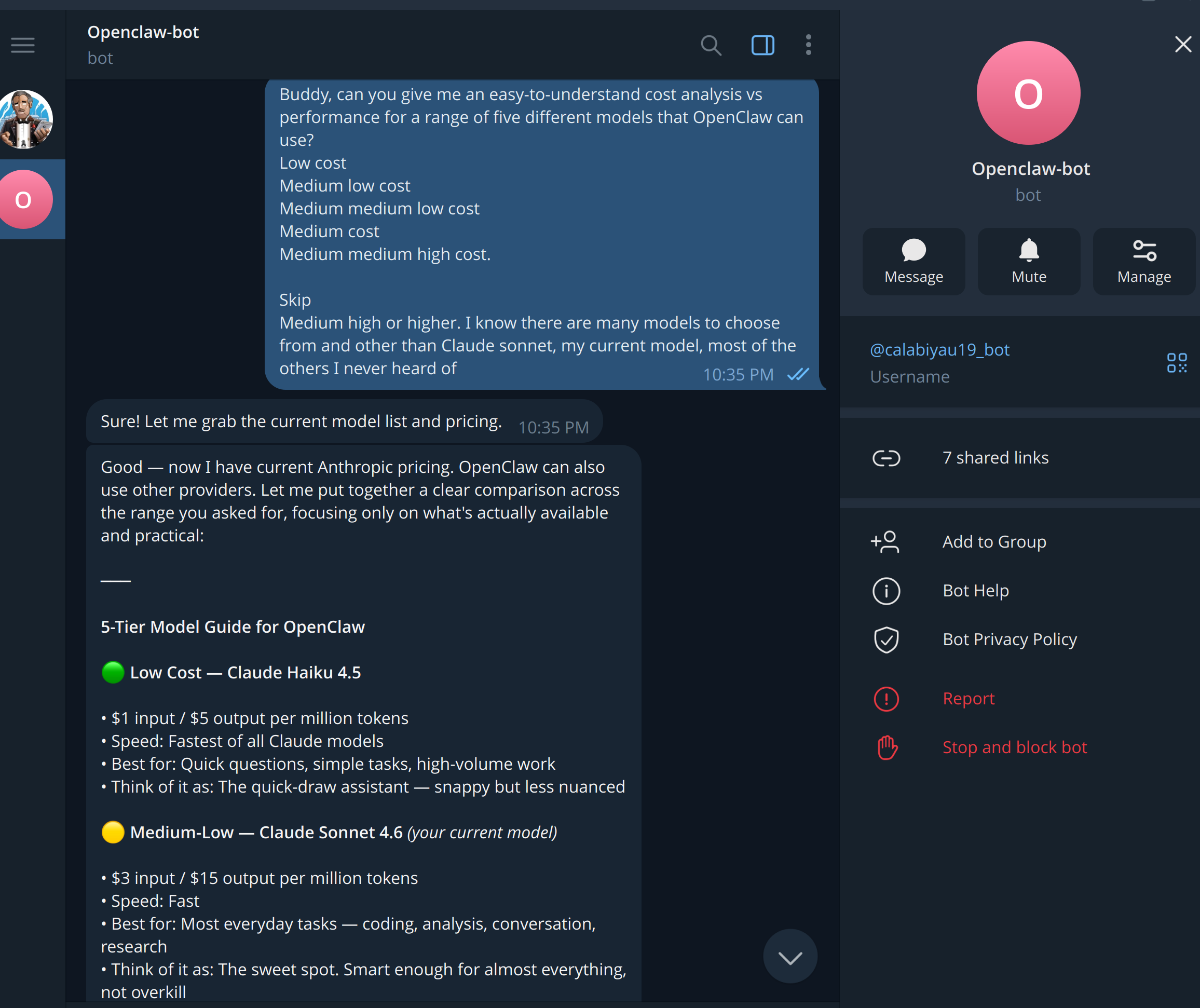
This post documents the steps to add the messaging app called Telegram to Linux Mint and then connecting it to OpenClaw. In this case, I already had Telegram running on my iPhone, and I wanted to add the same interface to my management laptop - for consistency in communications across all devices used to access OpenClaw.
Installing Telegram Desktop on Linux Mint 22.2
Linux Mint 22.x no longer ships a Telegram package in its default repositories, and the Flatpak version from the Software Manager has a known cursor rendering bug on Cinnamon. The correct approach is to install the official binary directly from Telegram’s website.
Why Not the Software Manager Version?
The Flatpak version of Telegram available in the Linux Mint Software Manager causes an inconsistent mouse cursor — the system cursor is replaced with a small default cursor inside the Telegram window. This is a known upstream issue with the Flatpak packaging and is not fixed by permission overrides. The official binary from Telegram’s website does not have this problem.
Step 1 — Remove the Flatpak Version (if installed)
If you previously installed Telegram from the Software Manager:
1
flatpak uninstall org.telegram.desktop
Step 2 — Download the Official Binary
Go to https://desktop.telegram.org in your browser and download the Linux tarball. It will land in your Downloads folder as a file named something like tsetup.6.7.8.tar.xz.
Step 3 — Extract the Archive
1
tar -xf ~/Downloads/tsetup.*.tar.xz -C ~/Downloads/
Step 4 — Move to /opt
1
sudo mv ~/Downloads/Telegram /opt/telegram
Step 5 — Create a Symlink
This allows you to launch Telegram from the terminal:
1
sudo ln -sf /opt/telegram/Telegram /usr/local/bin/telegram
Step 6 — Add to the Application Menu
Create a desktop entry, so Telegram appears in the Cinnamon application menu:
1
sudo nano /usr/share/applications/telegram.desktop
Paste the following:
1
2
3
4
5
6
7
8
[Desktop Entry]
Name=Telegram
Comment=Telegram Desktop
Exec=/opt/telegram/Telegram
Icon=/opt/telegram/telegram.png
Terminal=false
Type=Application
Categories=Network;InstantMessaging;
Save with Ctrl+X, then Y, then Enter.
Step 7 — Launch and Log In
Search for Telegram in your application menu or run:
1
telegram
Log in with your phone number. If you already have Telegram on another device, all your conversations including any bots will sync automatically — no additional setup required.
Updating Telegram
The official binary includes a built-in auto-updater. Telegram will notify you when a new version is available and update itself. No package manager commands needed.