Setting up Obsidian and Syncthing with external storage to document piano training, lessons, media, etc.
Over the past several months, I have accumulated many PDFs of practice piano sheets, many piano scores that I printed out, and many lessons that I downloaded. And I got to the point where the amount of information I had was kind of overwhelming me as to what to focus on to continue learning and improving my piano skills, which was THE POINT of the whole thing. After a long debate, I decided Obsidian was what I was going to use and I was also going to use Syncthing, so that I could put everything in my Proxmox Samba storage VM. In this case, it is the same VM that holds all my piano videos, so whatever I did on my laptop was automatically synced to my Samba storage VM. This project, therefore, is helping me learn about Obsidian as a more comprehensive note-taking, task-building app, Syncthing, and how that is all set up and how it works, and ultimately make me a better piano player through improved focus, documentation, and efficiency of practice.
Obsidian Piano Learning System Documentation
Created: January 27, 2026 System: Obsidian with Sync thing for cross-device sync
Devices: Linux Mint laptop (lpt-hp), Ubuntu VM (obsidian-vm at 192.168.1.83), iOS (planned)
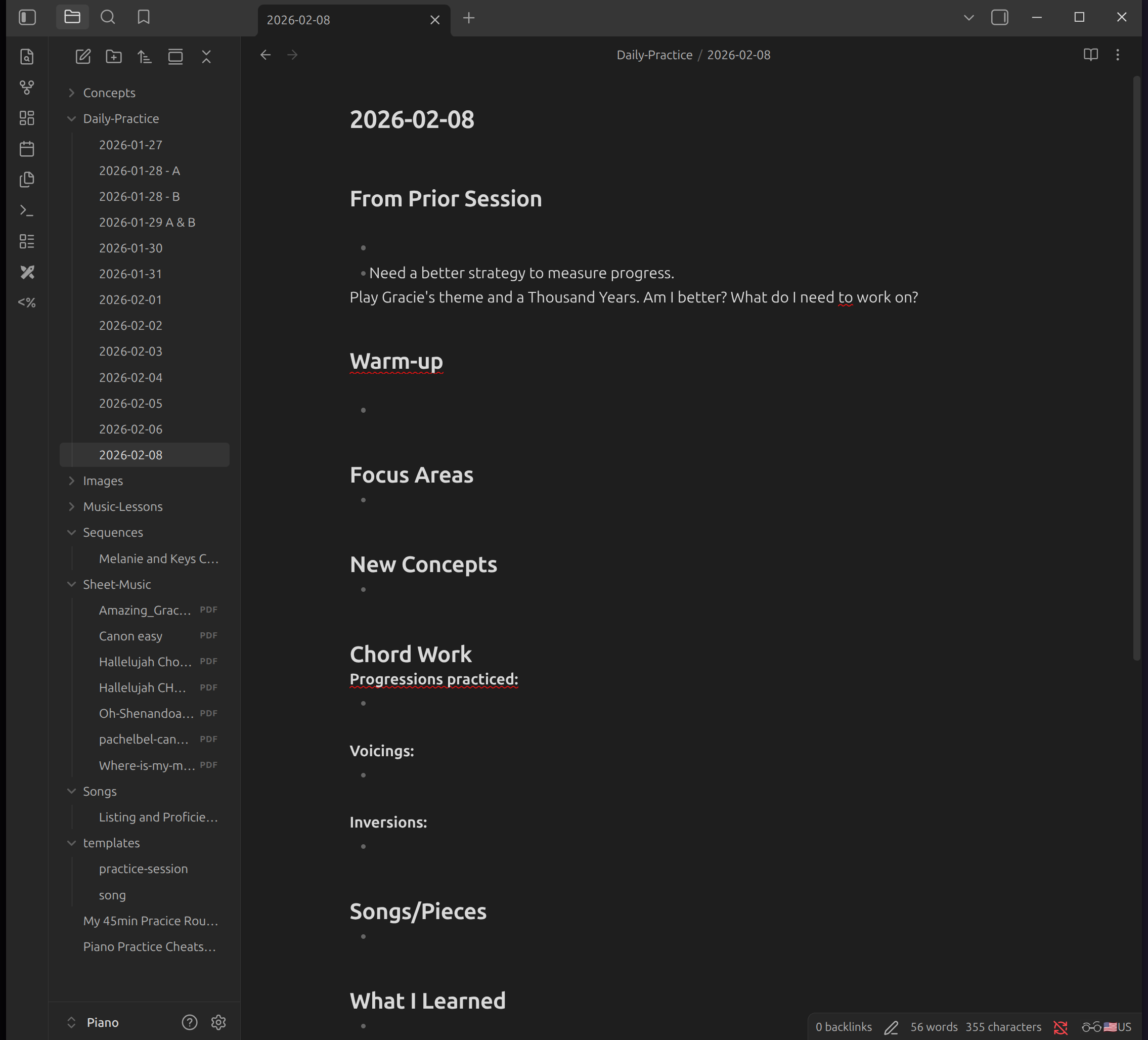
Table of Contents
System Overview
This system provides a comprehensive documentation platform for piano learning that syncs across devices:
- Linux Mint laptop: Primary note-taking and practice documentation
- Ubuntu VM (obsidian-vm): Central sync hub running Syncthing in Docker
- iOS devices: Mobile access for practice session notes (pending setup)
The vault contains structured folders for daily practice logs, music theory concepts, lesson notes, song analysis, and sheet music.
Why Syncthing vs Rsync
Rsync is designed for one-way backups - pushing data from source to destination on a schedule (like your Samsung T7 backups).
Syncthing provides two-way, real-time sync needed for this workflow:
- Write practice notes on iPad/iPhone at the piano
- Review and expand those notes on laptop
- Reference notes on phone while at piano
- All devices need to both read AND write, staying in sync automatically
Rsync cannot do this - it’s unidirectional and requires manual execution. Syncthing watches for changes on all devices, syncs bidirectionally in real-time, and handles conflicts automatically.
Think of it as:
- Rsync = scheduled backup truck (one direction, on schedule)
- Syncthing = self-hosted Dropbox (bidirectional, real-time, on your infrastructure)
Current Setup
Network Configuration
1
2
3
4
5
6
7
8
9
10
Linux Mint Laptop (lpt-hp)
    <--> Syncthing sync
Ubuntu VM (obsidian-vm)
    - IP: 192.168.1.83
    - Tailscale IP: 100.78.230.66
    - Docker container running Syncthing
    <--> Syncthing sync (planned)
iOS devices
    - Will connect via Mobius Sync app
    - Uses Tailscale IP for secure connection
Docker Configuration (obsidian-vm)
Location: /home/mark/syncthing/docker-compose.yml
1
2
3
4
5
6
7
8
9
10
11
12
13
services:
  syncthing:
    image: syncthing/syncthing:latest
    container_name: syncthing
    hostname: obsidian-vm
    environment:
      - PUID=1000
      - PGID=1000
    volumes:
      - ./config:/var/syncthing/config
      - ./vault:/var/syncthing
    network_mode: host
    restart: unless-stopped
Key points:
network_mode: hostenables proper local device discovery (recommended by Syncthing official docs)- Volume mapping:
./vault:/var/syncthingmeans files in container’s/var/syncthingare stored at/home/mark/syncthing/vault/on VM restart: unless-stoppedensures Syncthing starts automatically after VM reboots
File Paths
Laptop:
- Vault location:
/home/mark/Piano/ - Syncthing config:
~/.config/syncthing/ - Syncthing runs as systemd user service
VM (obsidian-vm):
- Container path:
/var/syncthing/Piano/(inside Docker container) - Actual filesystem:
/home/mark/syncthing/vault/Piano/(on VM) - Accessible via:
sftp://192.168.1.83/home/mark/syncthing/vault/
Installation Steps
Part 1: Install Tailscale on VM
Why first: Tailscale provides the secure connection that iOS will use to reach the VM.
SSH into obsidian-vm (192.168.1.83)
- Install Tailscale:
1
2
3
4
curl -fsSL https://pkgs.tailscale.com/stable/ubuntu/noble.noarmor.gpg | sudo tee /usr/share/keyrings/tailscale-archive-keyring.gpg >/dev/null
curl -fsSL https://pkgs.tailscale.com/stable/ubuntu/noble.tailscale-list | sudo tee /etc/apt/sources.list.d/tailscale.list
sudo apt update
sudo apt install tailscale
- Start and authenticate Tailscale:
1
sudo tailscale up- This will give you a URL to authenticate in your browser
- Complete authentication
- Verify and get Tailscale IP:
1
tailscale ip -4- Result: 100.78.230.66 (save this for iOS setup later)
- Set hostname (optional but recommended):
1
sudo tailscale set --hostname obsidian-vm
- Enable on boot:
1
sudo systemctl enable tailscaled
Part 2: Install Syncthing on VM (Docker)
Why Docker: Keeps Syncthing isolated and easy to manage/update.
- Still SSH’d into obsidian-vm, create directories:
1
2
mkdir -p ~/syncthing/{config,vault}
cd ~/syncthing
- Create docker-compose.yml:
1
nano docker-compose.yml
- Paste this content (based on official Syncthing Docker documentation): ```yaml services: syncthing: image: syncthing/syncthing:latest container_name: syncthing hostname: obsidian-vm environment:
- PUID=1000
- PGID=1000 volumes:
- ./config:/var/syncthing/config
- ./vault:/var/syncthing network_mode: host restart: unless-stopped ```
- Save:
Ctrl+O,Enter,Ctrl+X - Note:
network_mode: hostis recommended by Syncthing for proper device discovery
- Start Syncthing:
1
docker compose up -d - Verify it’s running:
1
docker ps
- Should show syncthing container with status “Up”
- Access web UI from your laptop browser:
- Go to: http://192.168.1.83:8384
- Set authentication (critical security step):
- Click “Actions” (top right) → “Settings”
- Click “GUI” tab
- Scroll down to “GUI Authentication User” and “GUI Authentication Password”
- Enter username and password
- Click “Save”
- Sign in with credentials you just created
- Note the Device ID:
- On main dashboard, look at “This Device” section
- Device ID: NFKAIYI-ON7FS3R-U2P7BK7-DKNM6QS-KFN5A2K-CJVQ7JV-XKSNDXI-HHZGIQB
- You’ll need this to connect other devices
Part 3: Install Syncthing on Laptop
- On Linux Mint laptop, open terminal:
1
sudo apt install syncthing
- Enable Syncthing to run as a user service:
1
2
systemctl --user enable syncthing
systemctl --user start syncthing
- Verify it’s running:
1
systemctl --user status syncthing- Should show “active (running)”
- Access laptop’s Syncthing web UI:
- Open browser on laptop
- Go to: http://localhost:8384
- Set authentication:
- You may be prompted immediately, or:
- Click “Actions” → “Settings” → “GUI” tab
- Set username and password
- Save and sign in
Part 4: Connect Laptop to VM
- On laptop’s Syncthing (localhost:8384):
- Click “+ Add Remote Device” (in Remote Devices section)
- In “Device ID” field, paste VM’s device ID:
1
NFKAIYI-ON7FS3R-U2P7BK7-DKNM6QS-KFN5A2K-CJVQ7JV-XKSNDXI-HHZGIQB
- In “Device Name” field, enter:
obsidian-vm - Click “Save”
- On VM’s Syncthing (192.168.1.83:8384):
- You should see a notification popup: “New Device”
- Shows device ID starting with LPTHP
- Click “Add”
- In “Device Name” field, enter:
lpt-hp - Click “Save”
- Verify connection:
- On laptop: Remote Devices should show “obsidian-vm” as “Connected”
- On VM: Remote Devices should show “lpt-hp” as “Connected”
Part 5: Create and Share Piano Vault
- On laptop, create Piano directory:
1
mkdir -p ~/Piano
- On laptop’s Syncthing web UI:
- Click “+ Add Folder”
- Folder Label:
Piano - Folder Path:
~/Piano(or/home/mark/Piano) - Note the auto-generated Folder ID (example: zsczc-mtjtp)
- Click “Sharing” tab
- Check box next to “obsidian-vm”
- Click “Save”
- On VM’s Syncthing web UI:
- You should see notification: “New folder shared from lpt-hp”
- Click “Add”
- Important: In “Folder Path” field, enter:
/var/syncthing/Piano- This is the path inside the Docker container
- Maps to
/home/mark/syncthing/vault/Pianoon the VM’s actual filesystem
- Click “Save”
- Verify sync is working:
- Both dashboards should show Piano folder as “Up to Date”
- Test the sync:
1
2
# On laptop
echo "test" > ~/Piano/test.txt
- Check on VM via file browser or SSH:
- Path:
/home/mark/syncthing/vault/Piano/test.txt - Or via sftp:
sftp://192.168.1.83/home/mark/syncthing/vault/
- Path:
- File should appear within seconds
- Check on VM via file browser or SSH:
Part 6: Create Vault Structure
- On laptop, create folder structure:
1
2
cd ~/Piano
mkdir -p Daily-Practice Concepts Music-Lessons Songs Sequences Sheet-Music templates
- Create practice session template:
1
nano ~/Piano/templates/practice-session.md
- Paste the template content (see Templates section below)
- Save:
Ctrl+O,Enter,Ctrl+X
- Create song template:
1
nano ~/Piano/templates/song.md
- Paste the template content (see Templates section below)
- Save:
Ctrl+O,Enter,Ctrl+X
- Verify sync:
- All folders and templates should sync to VM automatically
- Check both Syncthing dashboards show “Up to Date”
Installation complete! Laptop and VM are now syncing the Piano vault.
Current System Status
VM (obsidian-vm):
- IP: 192.168.1.83
- Tailscale IP: 100.78.230.66
- Syncthing Web UI: http://192.168.1.83:8384
- Device ID: NFKAIYI-ON7FS3R-U2P7BK7-DKNM6QS-KFN5A2K-CJVQ7JV-XKSNDXI-HHZGIQB
- Running: Docker container with Syncthing
- Vault location:
/home/mark/syncthing/vault/Piano/
Linux Mint Laptop (lpt-hp):
- Syncthing Web UI: http://localhost:8384
- Running: systemd user service
- Vault location:
/home/mark/Piano/ - Connected to: obsidian-vm
Sync Status:
- Piano folder syncing successfully between laptop and VM
- Folder ID: zsczc-mtjtp
- Both devices show “Up to Date”
Shared Folders
Piano vault:
- Folder ID:
zsczc-mtjtp - Laptop path:
/home/mark/Piano/ - VM path:
/var/syncthing/Piano/ - Status: Syncing successfully between laptop and VM
Test verification:
1
2
3
4
5
# On laptop
echo "test" > ~/Piano/test.txt

# Check on VM via sftp
sftp://192.168.1.83/home/mark/syncthing/vault/Piano/test.txt
Result: VERIFIED: File syncs successfully
Vault Structure
1
2
3
4
5
6
7
8
9
10
Piano/
          �    � Daily-Practice/          # Daily practice session logs
          �    � Concepts/                # Music theory concepts, techniques
          �    � Music-Lessons/           # Lesson notes from piano teacher
          �    � Songs/                   # Individual song analysis and notes
          �    � Sequences/               # Chord progressions, patterns
          �    � Sheet-Music/             # PDF storage for sheet music
          �    � templates/               # Note templates
              �    � practice-session.md
              �    � song.md
Folder Purposes
Daily-Practice/
- One note per practice session
- Use practice-session.md template
- Link to concepts and songs practiced
- Track progress over time
Concepts/
- Music theory topics (inversions, voicings, progressions)
- Technique notes
- Referenced from daily practice notes
Music-Lessons/
- Notes from each lesson
- Homework assignments
- Teacher feedback
Songs/
- One note per song/piece
- Use song.md template
- Link to sheet music
- Document chord progressions, voicings used
Sequences/
- Chord progression patterns (ii-V-I, etc.)
- Practice sequences
- Referenced from songs that use them
Sheet-Music/
- PDF storage
- Linked from song notes
Templates
practice-session.md
Location: ~/Piano/templates/practice-session.md
1
2
3
4
5
6
7
8
9
10
11
12
13
14
15
16
17
18
19
20
21
22
23
24
25
26
27
28
29
30
31
32
33
---
date:
duration:
tempo:
---

## Warm-up
-

## Focus Areas
-

## New Concepts
-

## Chord Work
**Progressions practiced:**
-

**Voicings:**
-

**Inversions:**
-

## Songs/Pieces
-

## What I Learned
-

## Next Session
-
Usage:
- Create new daily note in Daily-Practice/
- Copy template content
- Fill in as you practice
- Link to concepts:
[[Chord Inversions]] - Tag progressions:
#ii-V-I
song.md
Location: ~/Piano/templates/song.md
1
2
3
4
5
6
7
8
9
10
11
12
13
14
15
16
17
18
19
20
21
22
23
24
25
26
27
28
29
---
title:
composer:
key:
tempo:
difficulty:
---

## Sheet Music
- Location: [[Sheet-Music/]]

## Chord Progression
-

## Sections
### Intro

### Verse

### Chorus

## Practice Notes
-

## Voicings Used
-

## Related Concepts
-
Usage:
- Create new note in Songs/ folder
- Name it after the song
- Link to sheet music PDF
- Document chord progressions used
- Link to related concept notes
Next Steps
Immediate (Next Session)
- Install Obsidian on Linux Mint laptop
1
2
3
# Download latest .deb from https://obsidian.md
wget https://github.com/obsidianmd/obsidian-releases/releases/download/v1.7.7/obsidian_1.7.7_amd64.deb
sudo dpkg -i obsidian_1.7.7_amd64.deb
- Open Obsidian and create vault
- Launch Obsidian
- Select “Open folder as vault”
- Navigate to
/home/mark/Piano - Vault will open with existing folder structure
- Configure Obsidian settings
- Enable core plugins:
- Templates (set folder:
templates/) - Daily notes (set folder:
Daily-Practice/, template:templates/practice-session.md) - Graph view
- Backlinks
- Tags
- Templates (set folder:
- Install community plugins:
- Templater (enhanced templates)
- Calendar (visual practice tracking)
- Dataview (query practice sessions)
- Excalidraw (draw chord diagrams)
- Enable core plugins:
- Configure useful hotkeys
- Daily note: Default or customize
- Quick switcher:
Ctrl+O - Search all notes:
Ctrl+Shift+F - Create link:
[[
- Test workflow
- Create a daily practice note
- Use template
- Add some content
- Verify it syncs to VM
- Check VM at:
sftp://192.168.1.83/home/mark/syncthing/vault/Piano/
iOS Setup (Future Session)
- Configure Mobius Sync on iOS
- Open Mobius Sync app
- Add device using VM’s Tailscale IP:
100.78.230.66 - Enter VM’s Device ID when prompted
- Accept connection on VM’s Syncthing dashboard
- Share Piano folder with iOS device
- Configure Obsidian on iOS
- Open Obsidian app
- Create/open vault pointing to Mobius Sync folder
- Piano folder should appear
- Test creating a note on iOS
- Verify it syncs to laptop and VM
- Workflow testing
- Create note on laptop → verify on iOS
- Create note on iOS → verify on laptop
- Edit same note on both → test conflict resolution
Optional Enhancements
- Backup strategy
- Piano vault already syncs to VM
- Consider adding rsync backup from VM to Samsung T7
1
2
# Add to existing backup script
rsync -avz /home/mark/syncthing/vault/Piano/ /path/to/t7/backups/Piano/
- Access from other devices
- Syncthing can run on any device
- Could add Windows machines, other Linux systems
- All would sync through obsidian-vm hub
- Version control
- Could add git repository for vault
- Track changes over time
- Not necessary with Syncthing’s file versioning, but adds extra safety
Troubleshooting
Syncthing Not Syncing
Check connection status:
1
2
3
4
5
6
7
# On laptop
systemctl --user status syncthing

# On VM
cd ~/syncthing
docker ps
docker logs syncthing
Verify devices are connected:
- Open both Syncthing web UIs
- Check “Remote Devices” section
- Should show “Connected” not “Disconnected”
Check folder status:
- Should show “Up to Date” or sync percentage
- If “Stopped” or “Error” - check folder paths
Permission Issues on VM
If Syncthing can’t write to vault:
1
2
3
# On VM
cd ~/syncthing
sudo chown -R 1000:1000 vault/
Syncthing Not Starting After Reboot
Laptop:
1
2
systemctl --user enable syncthing
systemctl --user start syncthing
VM:
1
2
cd ~/syncthing
docker compose up -d
Files Not Appearing in Obsidian
Possible causes:
- Syncthing not running
- Folder not shared with device
- Path mismatch in Syncthing config
Verification:
1
2
3
# Check if files exist on filesystem
ls -la ~/Piano/
ls -la /home/mark/syncthing/vault/Piano/  # On VM via SSH
Conflict Resolution
When same file edited on multiple devices simultaneously:
- Syncthing creates
.sync-conflictfiles - Both versions preserved
- Manually merge changes
- Delete conflict file after merging
Web UI Not Accessible
Laptop (localhost:8384):
- Check if Syncthing running:
systemctl --user status syncthing - Check firewall (shouldn’t affect localhost)
VM (192.168.1.83:8384):
- Check Docker container:
docker ps - Check
network_mode: hostin docker-compose.yml - Verify authentication credentials
Maintenance
Regular Tasks
Weekly:
- Check Syncthing dashboards for any errors
- Verify all devices showing “Connected”
- Check disk space on VM
Monthly:
- Review and organize vault structure
- Archive old practice sessions if desired
- Update Syncthing (both laptop and VM container)
Updates
Laptop Syncthing:
1
2
3
sudo apt update
sudo apt upgrade syncthing
systemctl --user restart syncthing
VM Syncthing (Docker):
1
2
3
cd ~/syncthing
docker compose pull
docker compose up -d
Obsidian:
- Updates automatically on launch
- Or download latest .deb and reinstall
Important Device Information
Syncthing Device IDs
obsidian-vm:
1
NFKAIYI-ON7FS3R-U2P7BK7-DKNM6QS-KFN5A2K-CJVQ7JV-XKSNDXI-HHZGIQB
lpt-hp (laptop):
- Device ID visible in laptop’s Syncthing UI at localhost:8384
- Listed as “This Device”
Network Addresses
obsidian-vm:
- Local IP: 192.168.1.83
- Tailscale IP: 100.78.230.66 (for iOS connection)
- Syncthing Web UI: http://192.168.1.83:8384
lpt-hp:
- Syncthing Web UI: http://localhost:8384
Additional Resources
Obsidian:
- Official docs: https://help.obsidian.md/
- Forum: https://forum.obsidian.md/
Syncthing:
- Official docs: https://docs.syncthing.net/
- Docker README: https://github.com/syncthing/syncthing/blob/main/README-Docker.md
- Forum: https://forum.syncthing.net/
Markdown Reference:
- Basic syntax: https://www.markdownguide.org/basic-syntax/
- Obsidian flavor: https://help.obsidian.md/Editing+and+formatting/Basic+formatting+syntax
Change Log
2026-01-27:
- Initial setup completed
- Syncthing deployed on obsidian-vm (Docker)
- Syncthing configured on lpt-hp laptop
- Devices connected and syncing
- Piano vault structure created
- Templates created
- Documentation written
Next session planned:
- Install and configure Obsidian on laptop
- Test workflow
- iOS setup if time permits
End of documentation